
The devices draw it
LLDP and CDP neighbour tables are read and rendered as device-port adjacency. Nobody picks up a pen; the map shows what is actually in the rack.
Topology is derived from LLDP and CDP neighbour data: which device sits on which port of which switch. Because the data comes from the devices, the map does not depend on someone remembering to update a Visio file. Links from discovery and links you verified by hand are stored apart, so you always know how much to trust a given line. The map opens per customer: devices outside the site you picked never bleed into the view.
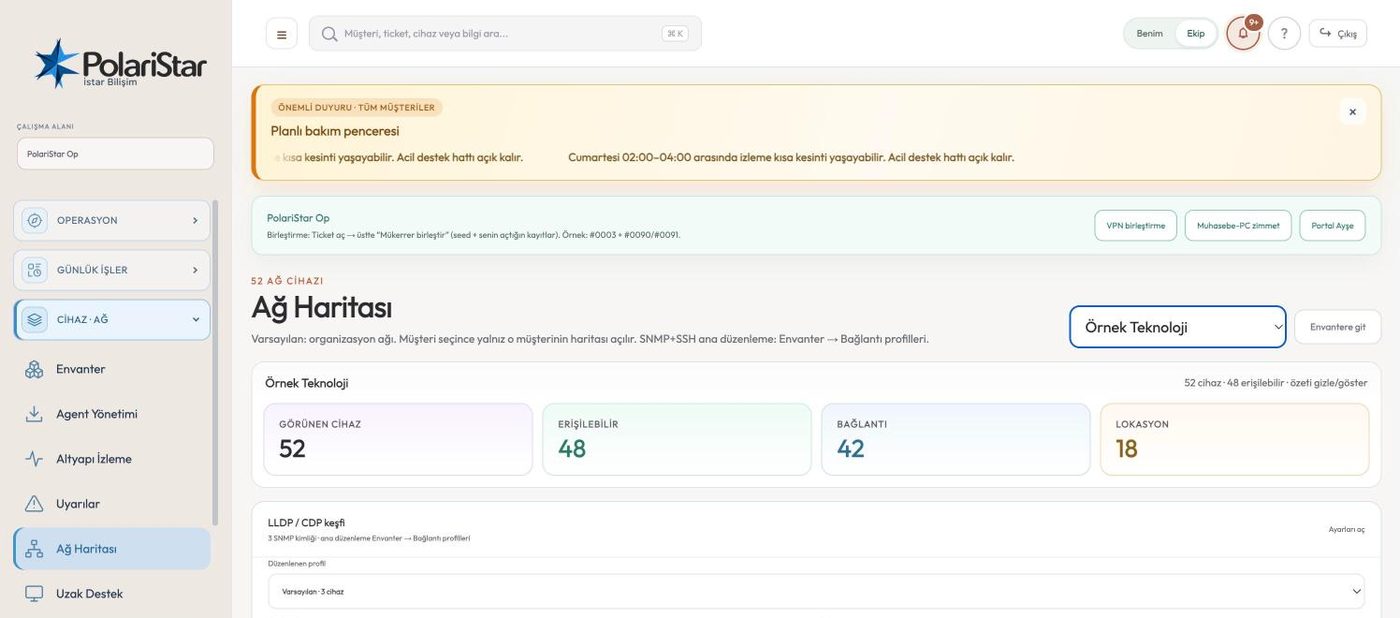
LLDP and CDP neighbour tables are read and rendered as device-port adjacency. Nobody picks up a pen; the map shows what is actually in the rack.
A discovered link and a link you verified by hand are never thrown into the same bucket. Every line has a known origin, which ends the “who drew this, is it real” argument. That separation is what makes the map auditable.
An unmanaged switch that speaks no LLDP, a media converter, a run through a wall socket — none of it shows up in discovery. Add link lets you draw it, and the record stays marked as manually added.
The discovery panel is where SNMP credential profiles and their try order are set. When a site mixes communities or vendors, profiles are attempted in turn until one answers.
Find broken surfaces links that are missing or dangling at one end. You do not have to hunt for them by eye across a hundred nodes.
Building, floor and room logic can be drawn onto the map as areas. Which cabinet a device lives in is readable from the picture, so the field engineer does not have to phone anyone for an address.
Place devices where you want them, or go back to the standard arrangement with Auto arrange. Nodes you removed come back with Restore removed, and your arrangement is also kept in the browser.
Visible devices, reachable, links and locations sit in the header. The gap between visible and reachable is the first clue to where discovery is stuck.
Download PNG turns the map into an image that drops straight into the infrastructure document you hand the customer, a handover file or a quote attachment. Full-screen mode is for projecting it in a meeting.
No. The base drawing comes out of LLDP and CDP neighbour data. Manual editing exists to complete the runs discovery cannot see, not to do the whole job.
Not on network gear: neighbour data is read over read-only SNMP. In a cloud deployment, a collector placed inside the customer network runs that scan locally.
Manual links are not kept in the same place as discovered ones, so they do not collide. That is the whole point of the separation: which line came from a machine and which from a person stays knowable afterwards.
It does not. The product rule is explicit: a discovered device is not taken into inventory without customer or organisation approval. Discovery and inventory run separately, and Go to inventory is the bridge between the two screens.
Location, link handling and scaling have been worked on and the map is usable. That said, link speed showing the wrong colour or style, label legibility, and pan/zoom behaviour are all on the open defect list. The module is tracked as “partial”.
No. The map is scoped to one customer; devices outside the selected one are not rendered. In organisation mode the same logic applies with department scope.
Network administrators, teams doing site installs and handovers, and MSPs who hand infrastructure documentation to their customers.
Let us open a workspace for you and try it with your own customers and devices. We will guide you through setup and data migration.